MOTOROLA SUPPORT
Learn how to set up and troubleshoot your Motorola device on Consumer Cellular's network.
Motorola
Need more assistance with activating your Motorola Device?
Motorola Support Resources
Device Setup: a new phone
Network Solve signal issues
Reset Backup device
Contact Motorola Support
Device Support
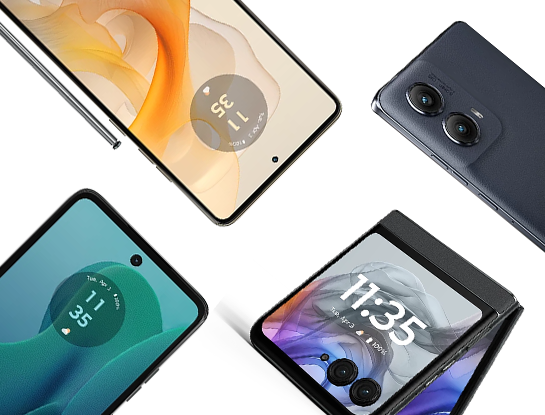
razr+ (2024) Support
moto g 5G (2024) Support
motorola edge+ (2023) Support
moto g play Support
Find support for your Motorola device.
Motorola Accessibility Features
TalkBack
TalkBack is the Google screen reader included on Android devices. TalkBack gives you eyes-free control of your device.
Press Volume buttons to start/stop TalkBack
You can press the Volume buttons to turn the screen reader TalkBack on or off.
To enable the shortcut:
- Go to Settings > Accessibility > TalkBack
- Turn TalkBack shortcut on
To use the shortcut:
Press and hold the Volume Up and Down buttons at the same time for three seconds.
You'll hear confirmation that the feature has been turned on or off.
Enable TalkBack
- Go to Settings > Accessibility.
- Touch TalkBack and turn Use TalkBack on
- Touch Settings and set the options you want.
Using Visual Assistance
The solution below will detail how to turn on accessibility features, like TalkBack, that help you use your phone if you have visual impairments.
Adjust colors if you’re color blind
- Go to Settings > Accessibility
- Touch Color correction and turn Use color correction on turn on
- (Touch Correction mode and choose an option.)
Color correction is an experimental feature and might not work correctly everywhere on your phone. To use an accessibility shortcut for quickly turning Color correction on/off:
Go to Settings > Accessibility > Color correction
Turn Color correction shortcut on
Tap Color correction shortcut and choose one or more shortcuts:
- For a shortcut on your home screen, select Tap accessibility button.
- To press & hold both Volume buttons simultaneously, select Hold volume keys.
Enable Dexterity Assistance
If you’re unable to use a touchscreen, Switch Access lets you control the phone using external switches or keyboard keys to select items, scroll, enter text, and more.
To use Switch Access, you must have one of the following:
- An external switch. USB or Bluetooth switch devices send keystroke signals to your phone.
- An external keyboard. Standard USB or Bluetooth keyboards can work as switch devices by assigning one or more keys to actions.
Connect the external device to your phone using the manufacturer’s instructions. Learn more about connecting with Bluetooth.
Set up Switch Access
- Go to Settings > Accessibility
- Touch Switch Access
- Turn Use service on
- Follow onscreen instructions to select:
- Number of switches
- Scanning options
- Switch assignments
To adjust Switch Access later:
- Go to Settings > Accessibility
- Touch Switch Access > Settings
- Adjust options