SAMSUNG SUPPORT
Learn how to set up and troubleshoot your Samsung device on Consumer Cellular's network.
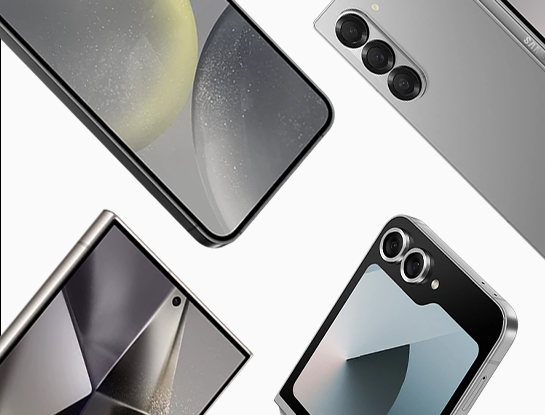
Samsung
Step-by-Step Instructions
Galaxy S Series Devices
Galaxy Z Series Devices
Galaxy A Series Devices
Need more assistance with activating your Samsung Device?
Samsung Support Resources
How do I set up my new smartphone?
Get ready to start using your Galaxy phone
Contact Samsung Support
Access the user manual for your Samsung phone
Technical Specifications
Samsung Galaxy S25 Series
Samsung Galaxy Z Flip6
Samsung Galaxy Z Fold6
Find support for your Samsung device.
Galaxy Mobile Accessibility
Screen Reader
Android TalkBack
TalkBack is a screen reader that helps vision-impaired users interact with their Galaxy device for writing emails, sharing on social media and much more.
Dark screen with Quick menu
TalkBack is a screen reader that helps vision-impaired users interact with their Galaxy device for writing emails, sharing on social media and much more.
Quick typing
When you touch the Samsung Keyboard, your phone is able to read out the key under your finger. Simply release your finger from the screen to select the character you want.
Visibility Enhancements
Display mode
On Display mode, you can increase the contrast on the screen or make the contents appear bigger.
High contrast theme
Use a theme with light-colored content on a dark background for easier reading and higher visibility.
High contrast fonts
Adjust the color and outline of fonts to increase the contrast between the text and the background.
Color adjustment
Adjust how colors are displayed on the screen if you have difficulty in distinguishing colors.
Hearing Enhancements
Sound detectors
Sound detectors allow the device to detect the sound of a baby crying or a doorbell ringing.
Mute all sounds
Mute all sounds turns off all sounds of the device.
Hearing aid support
Samsung has a number of phones that have been designed, tested and certified to potentially improve performance for users with hearing aids.*¹
Speech-to-text
You can read the other person's words on your screen. Record the voice through the microphone and it will automatically convert to text.
Interaction and Dexterity
Universal switch
Control the touchscreen by connecting an external switch, by tapping the screen or by using head movements and face gestures.
Assistant menu
Show the assistive shortcut icon for accessing apps, features and settings. You can easily control your phone by tapping the assistive menus in the icon.
Voice Access
When you have difficulty touching the screen, you can use Voice Access to control your device by voice.
Interaction control
Turn on Interaction control mode to restrict your phone's sensitivity to touch interaction whilst using apps.